


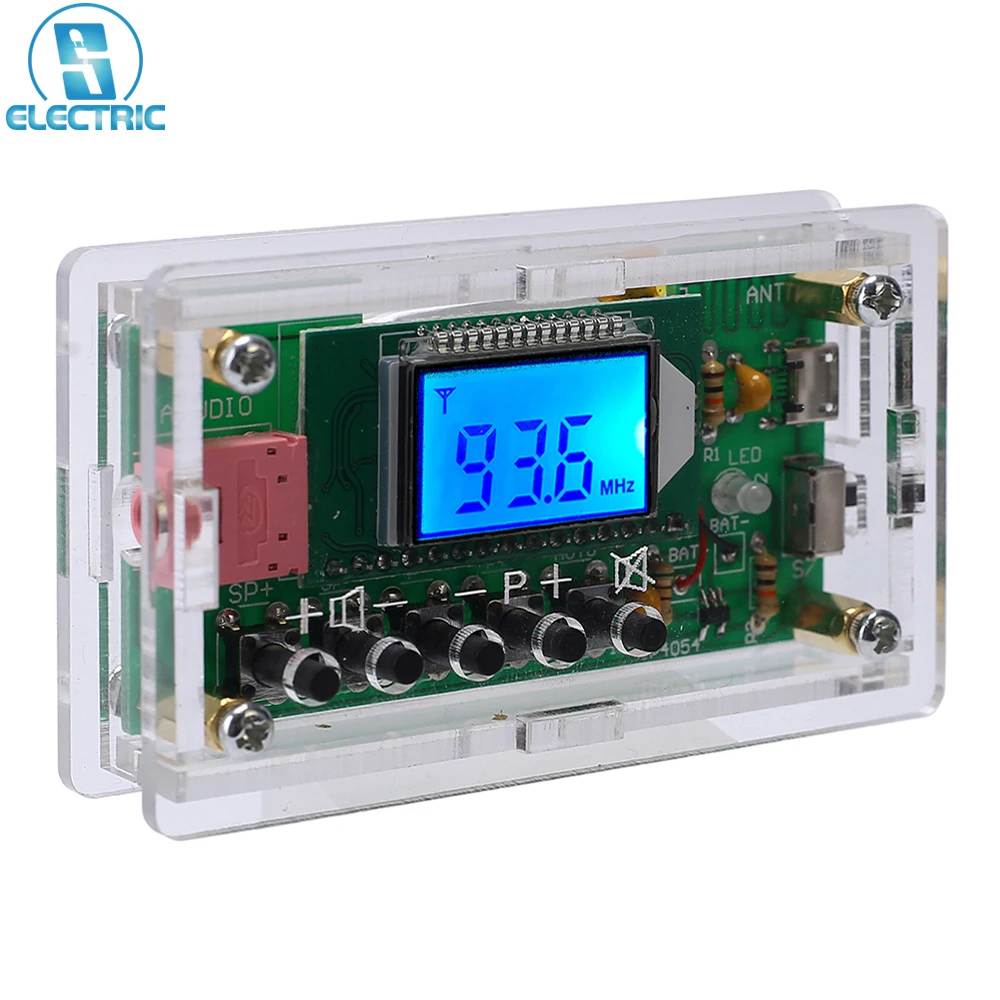
DIY Kit FM Radio Receiver Wireless Module 76-108MHz LCD Display Auto Search Station D …
Description
Price: -

Installation manual download address:
http://attach01.oss-us-west-1.aliyuncs.com/IC/DIY-Manual/GY20385.pdf
DIY Kit FM Radio Receiver Wireless Module 76-108MHz LCD Display Auto Search Station DC 5V 5W Welding Skills Training Suite
1. Introduction:
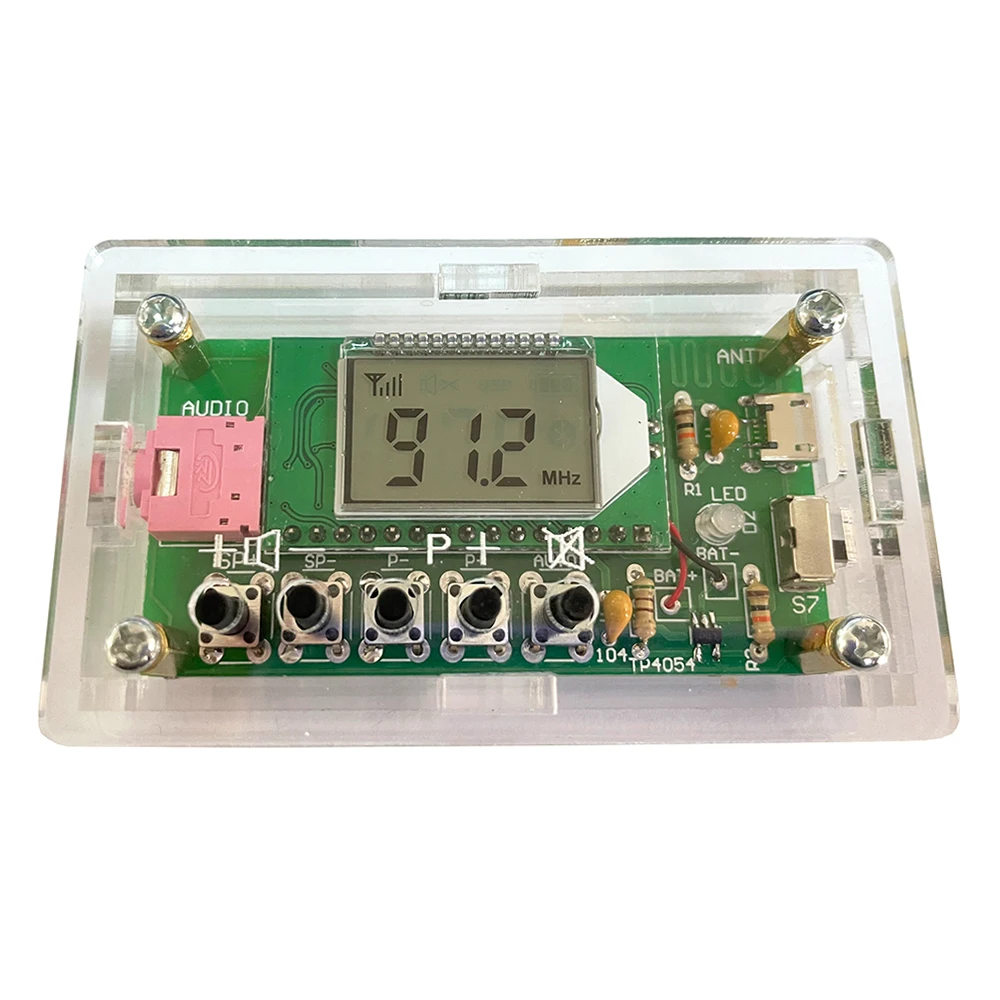
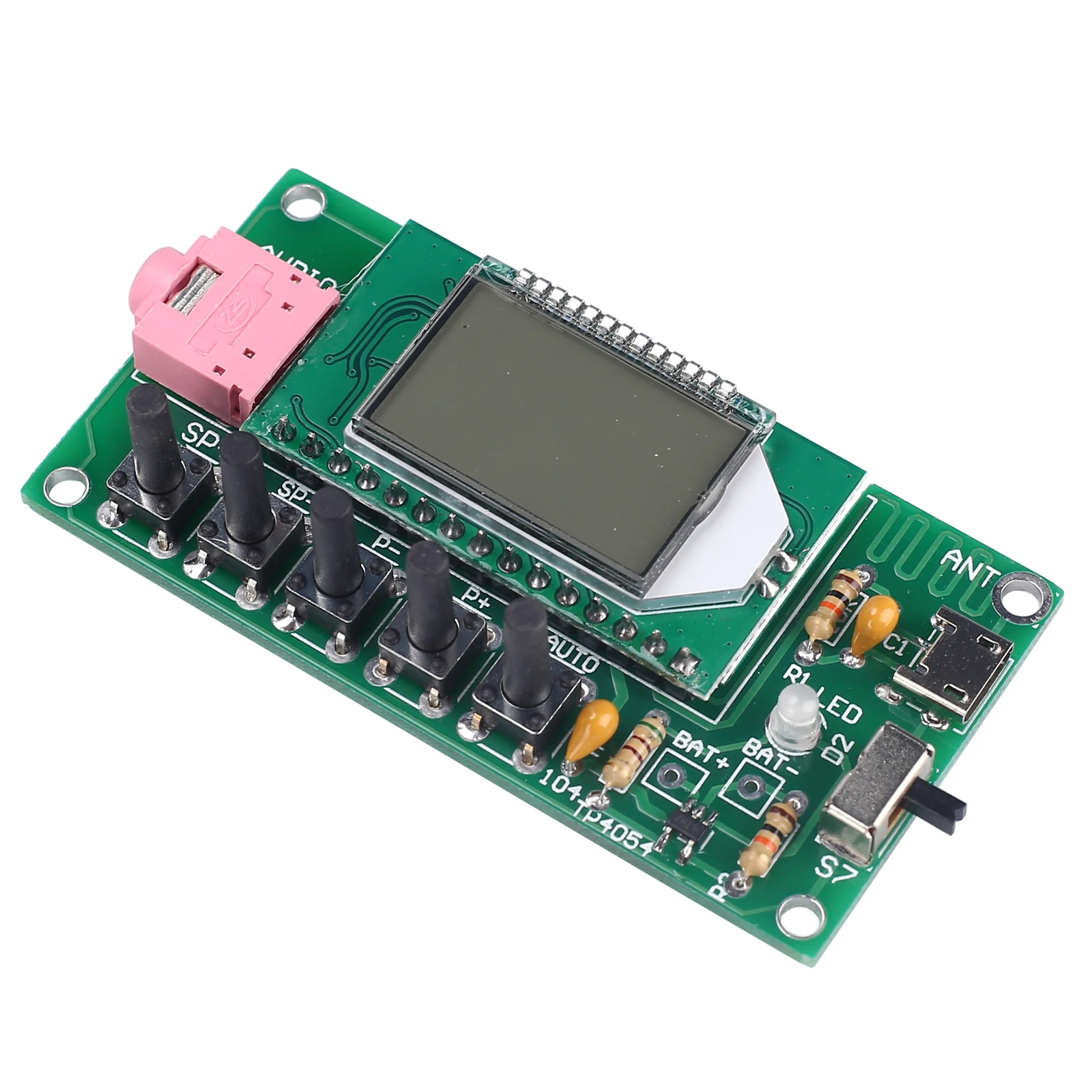
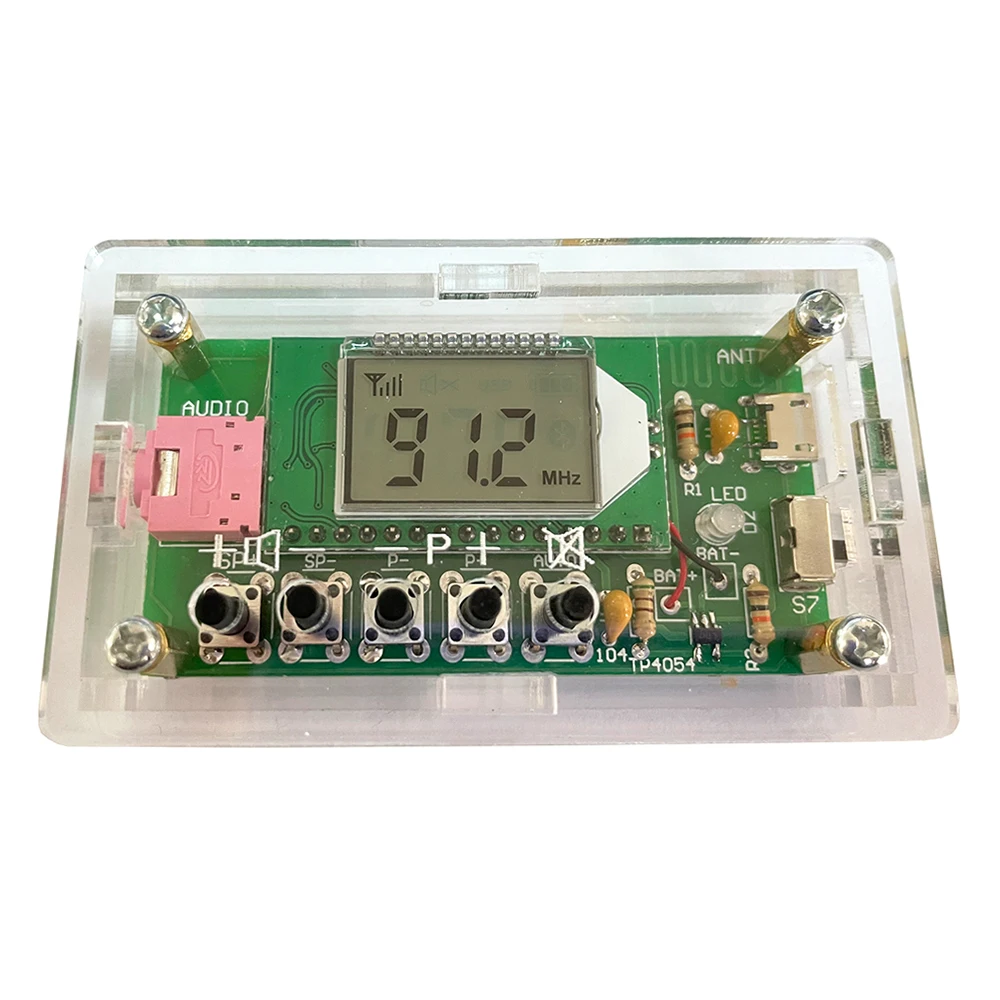
It is an 76.0MHz-108.0MHz Wireless FM Radio Receiver DIY Kit.It has a built-in high-definition display LCD display screen which can clearly display the receiving frequency and it can store 22 radio stations, which is enough to meet your needs.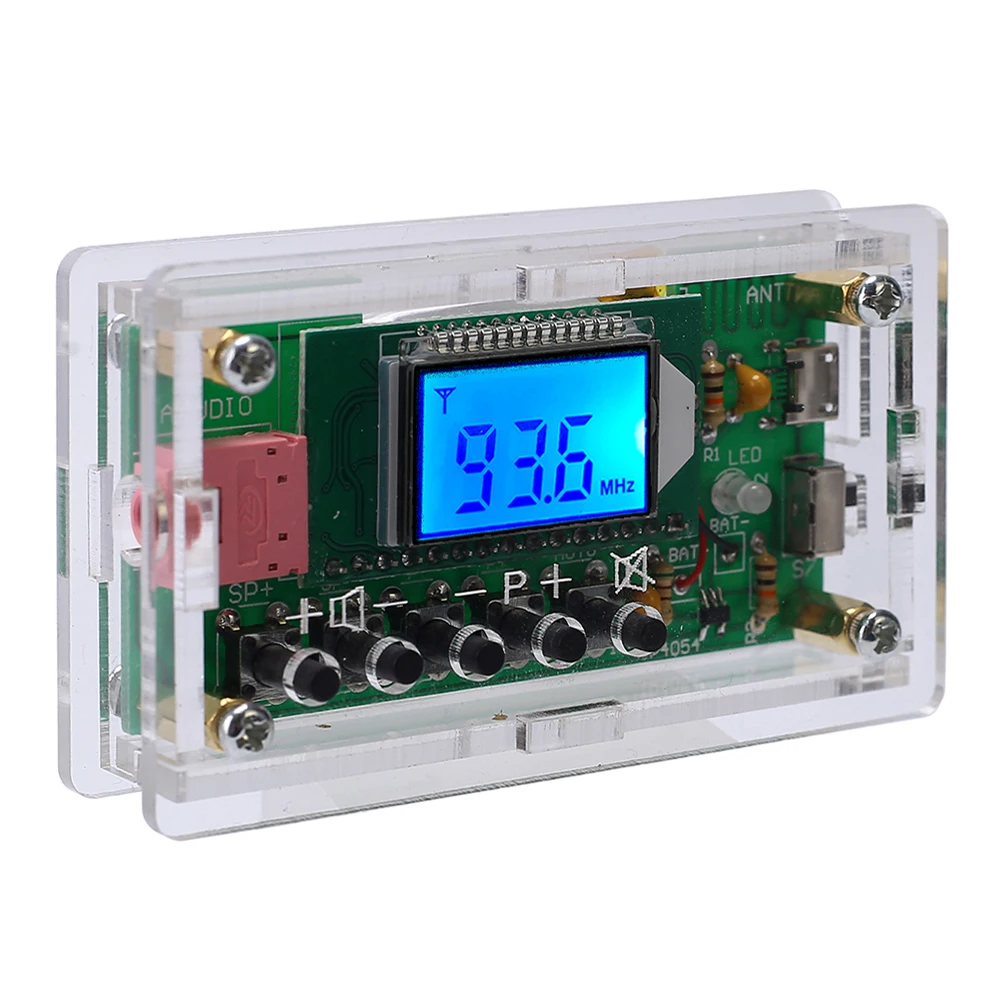
2.Feature:
1>.HD display LCD display screen
2>.Support storage of 22 radio stations
3>.Automatically search for radio stations
4>.Built-in 30-level digital volume adjustment
5>.Automatic memory function after power off
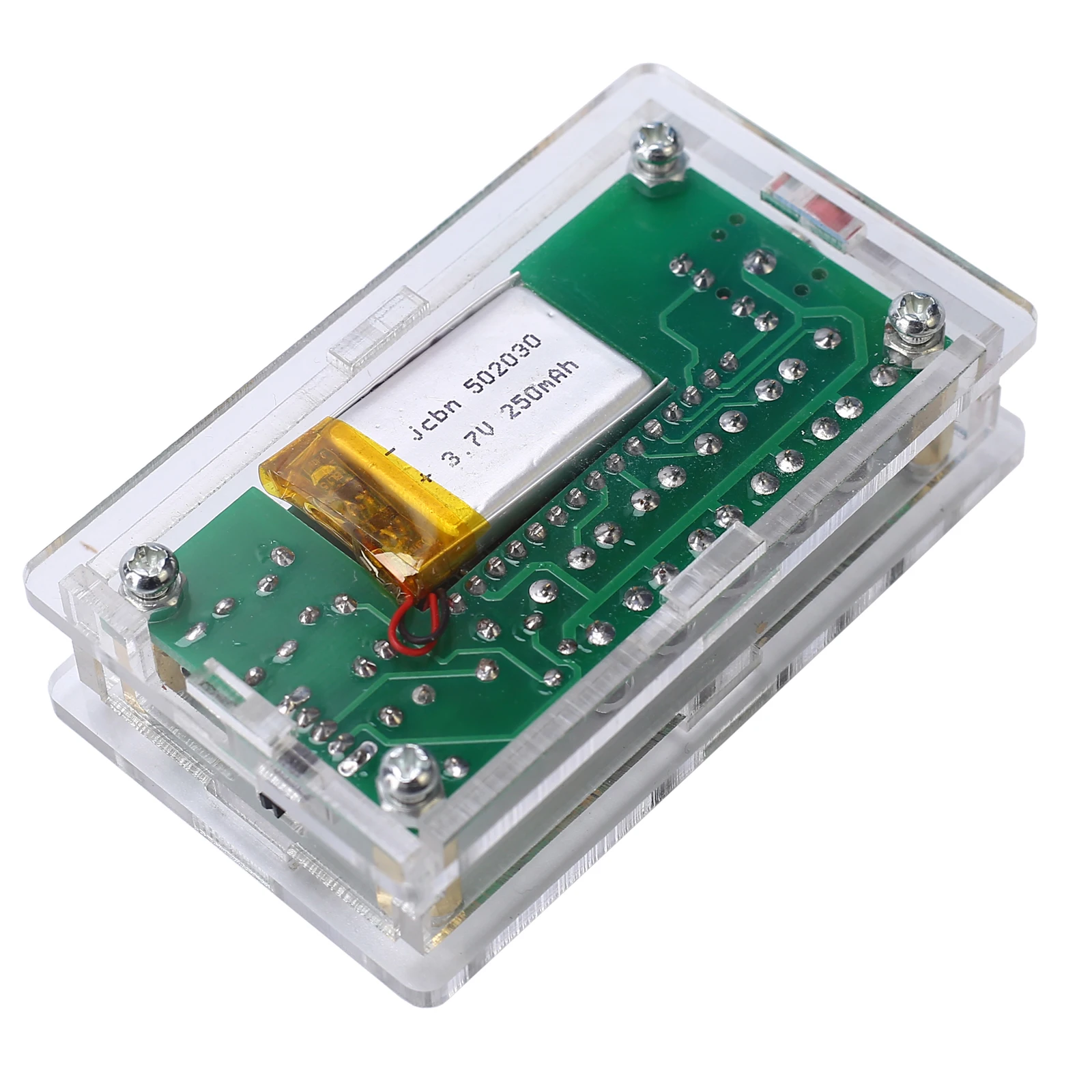
6>.Support 76Hz-108MHz receiver frequency
7>.Built-in rechargeable module
8>.Built-in 5W power amplifier
9>.Power saving mode with backlight off for 20 seconds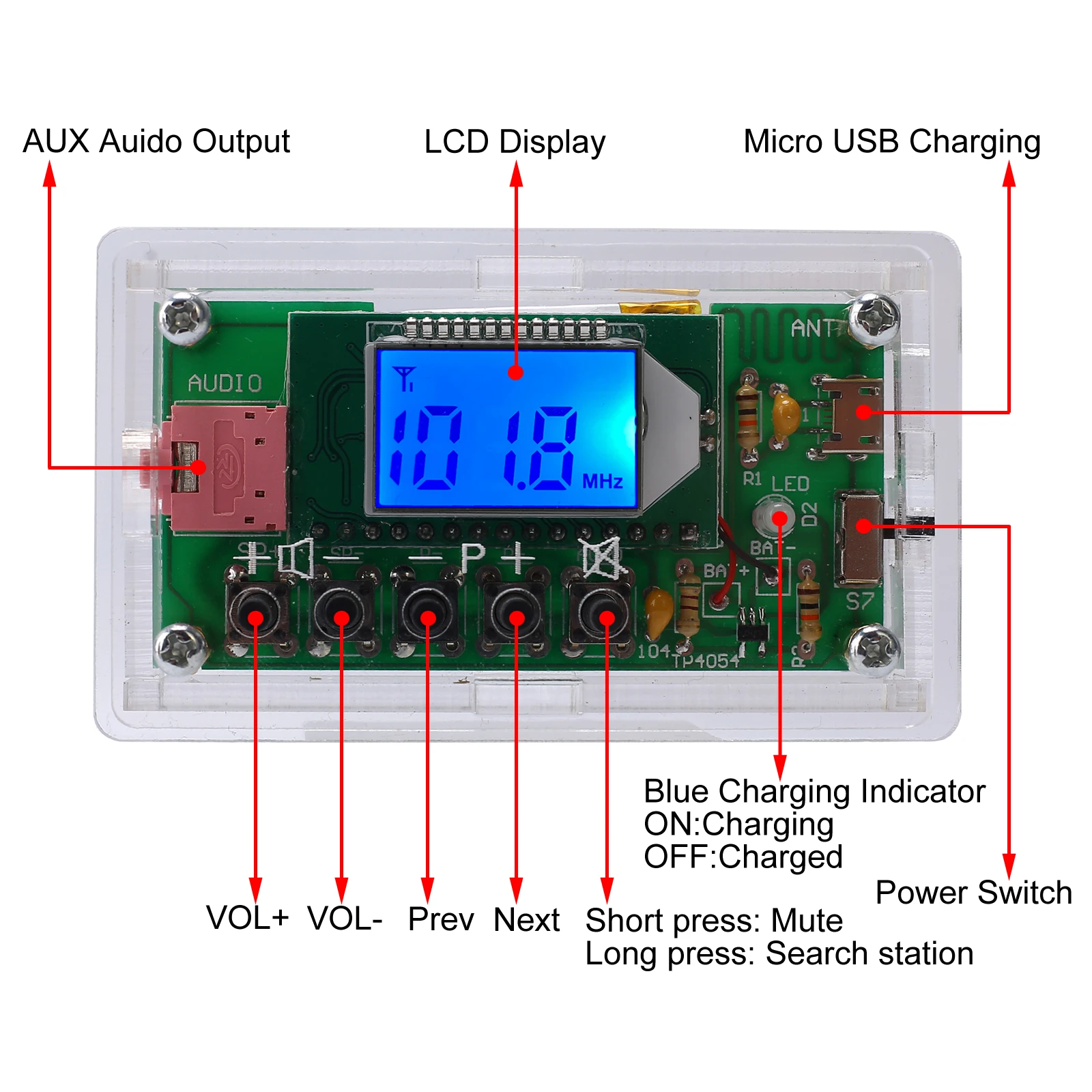
3.Parameter:
1>.Product Name:LCD Display FM Radio Receiver DIY Kit
2>.Work Voltage:DC 3.0V~5.0V
3>.Work current:40mA
4>.Output power:500mW(just for headset)
5>.Output channel:Dual channel stereo
6>.Frequency:87.0MHz~108.0MHz(Disable Campus Broadcasting Band)
7>.Frequency:76.0MHz~108.0MHz(Enable Campus Broadcasting Band)
8>.Equivalent noise: >=30dB
9>.Work Temperature:-40℃~85℃
10>.Work Humidity:5%~95%RH
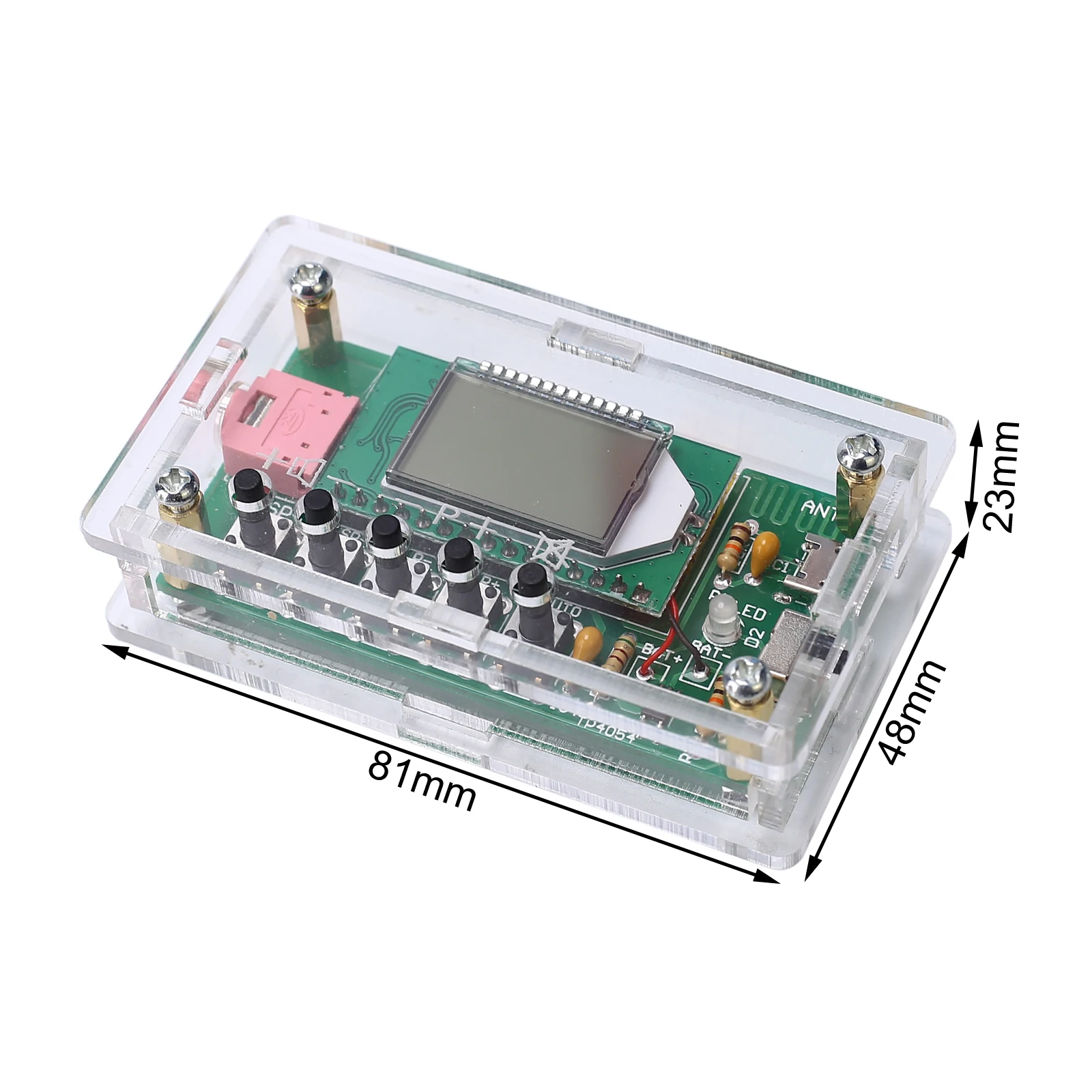
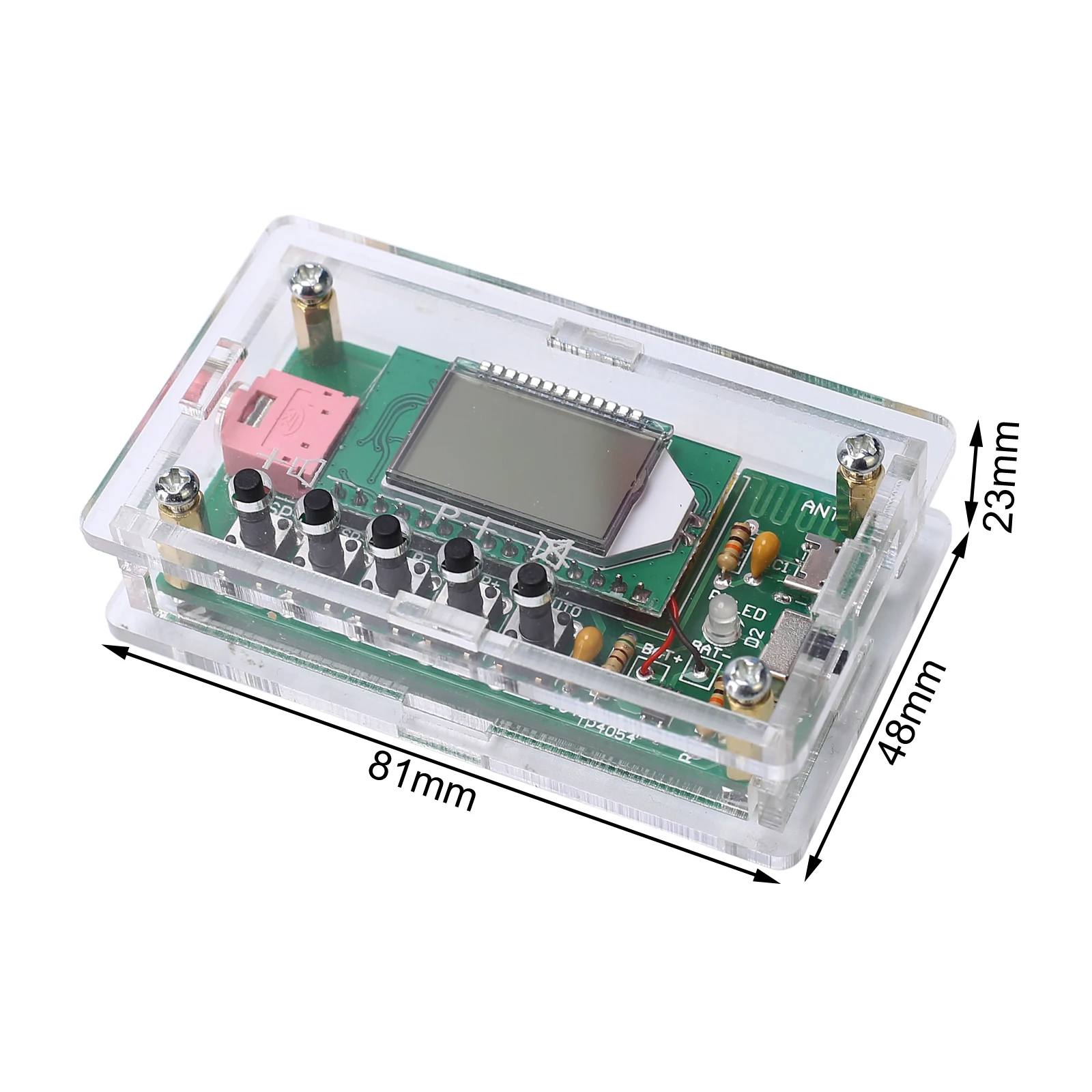
11>.Size(Installed):82*49*20mm
4.Use Methods:
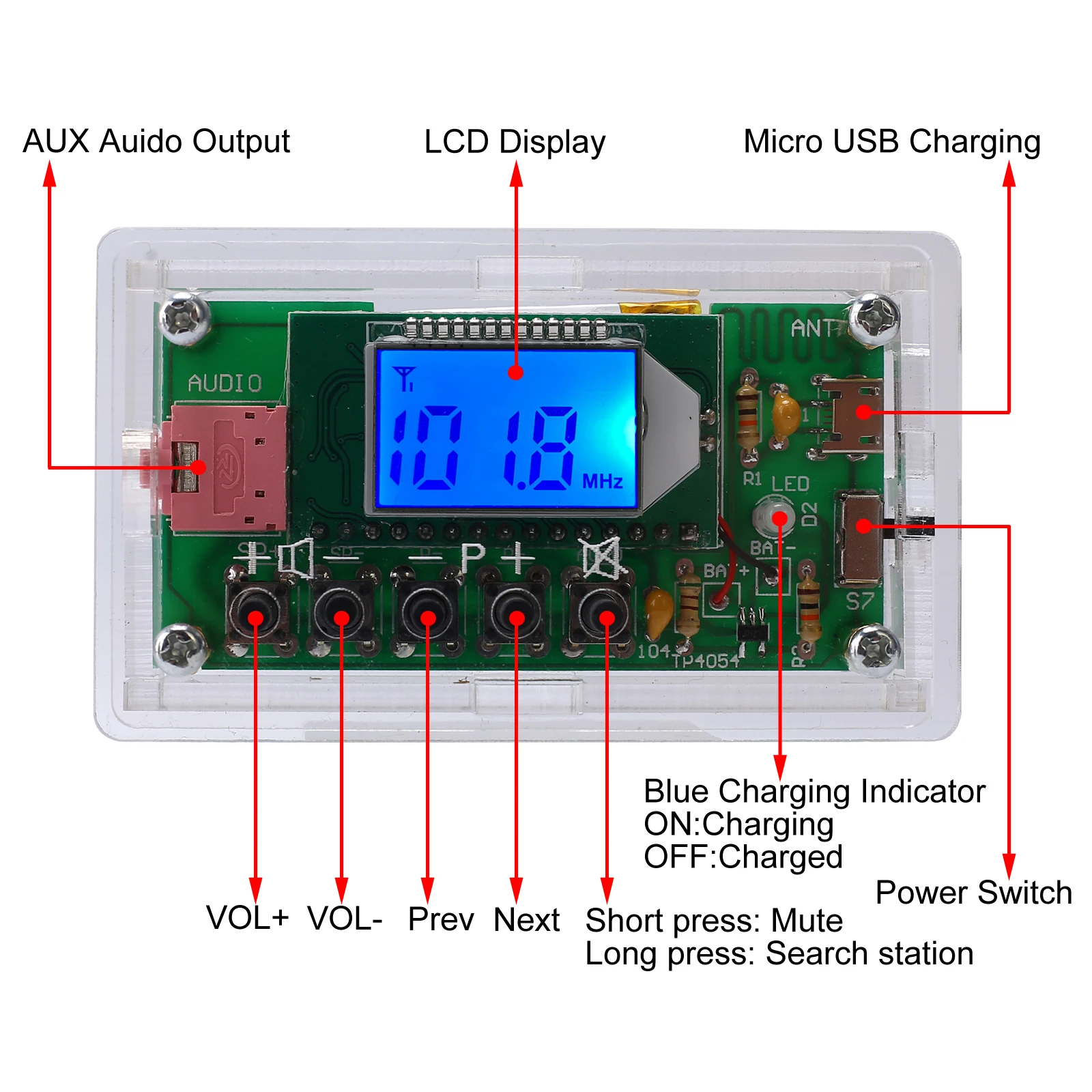
1>.Keep press AUTO button to automatically search and store the radio stations that can be listened to.
2>.Automatically name searchable stations like P01,P02,P02 and so on.
3>.Press P+ and P- to switch saved stations.
4>.Press V+ and V- to adjust volume from V00 to V30.
5>.Switch Campus Broadcasting Band: Keep press V+ and V- before power ON and then turn ON work power switch. It means enable Campus Broadcasting Band if display C1 on LCD. It means disable Campus Broadcasting Band if display C0 on LCD.Available after restart.
6>.Enable backlight mode: Keep press P+ and P- before power ON and then turn ON work power switch. It means keep backlight ON if display B1 on LCD. It means the backlight will turn OFF after 20second if display B0 on LCD(This is the power saving mode).Available after restart.
5.Note:
1>.It cannot receive radio while it is charging.
2>.It is a wireless module. So do not use it in an environment with signal interference.
3>.Input charging voltage form micro USB socket.
6.Installation Tips:
1>.User needs to prepare the welding tool at first.
1.1>.Soldering iron (<50 Watt)
1.2>.Rosin core ("radio") solder
1.3>.Wire cutters
1.4>.Wire strippers
1.5>.Philips screwdriver
2>.Please be patient until the installation is complete.
3>.The package is DIY kit.It need finish install by user.
4>.The soldering iron can't touch the components for a long time(1.0 second), otherwise it will damage the components.
5>.Pay attention to the positive and negative of the components.
6>.Strictly prohibit short circuit.
7>.User must install the LED according to the specified rules.Otherwise some LED will not light.
8>.Install complex components preferentially.
9>.Make sure all components are in right direction and right place.
10>.It is strongly recommended to read the installation manual before starting installation!
11>.Please wear anti-static gloves or anti-static wristbands when installing electronic components.
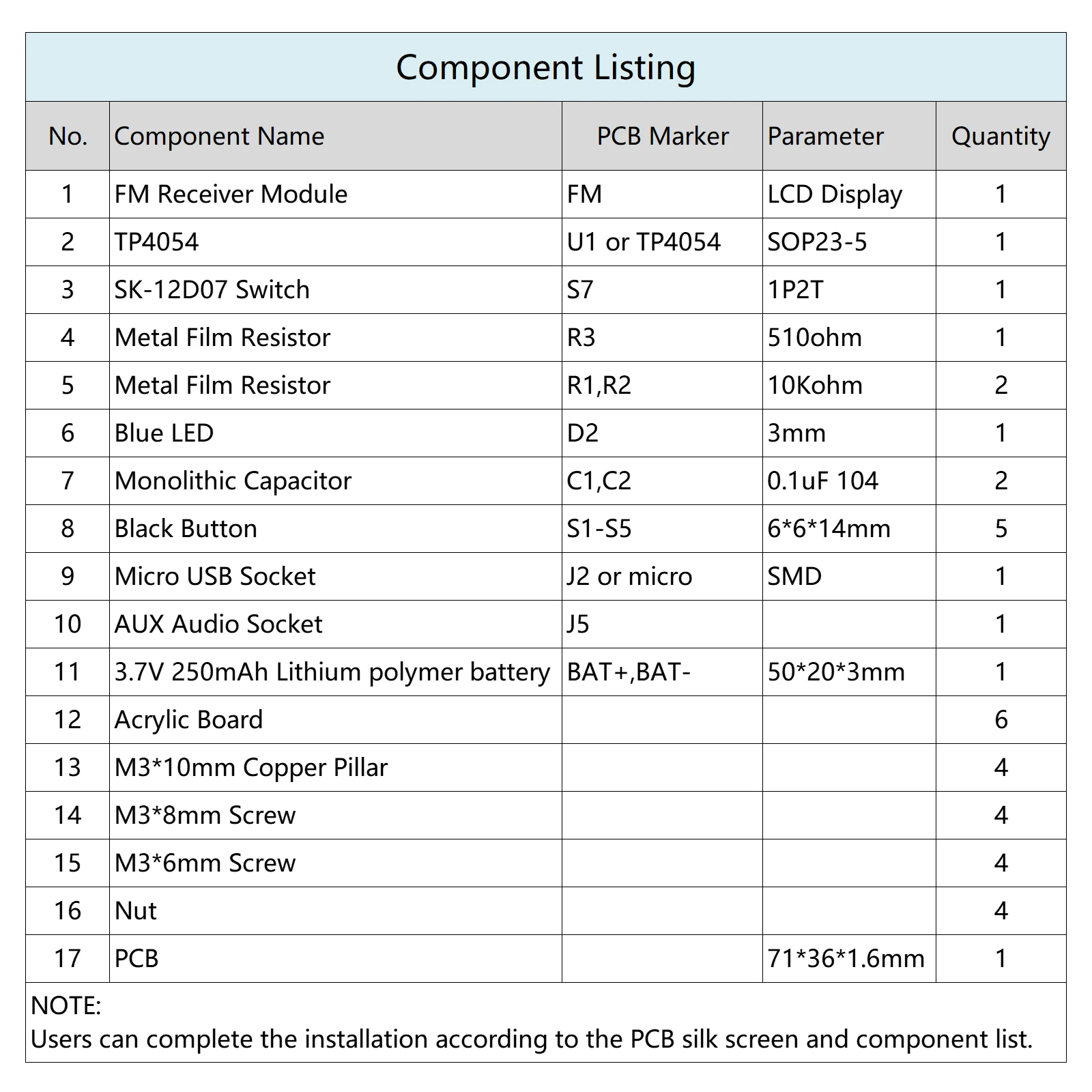
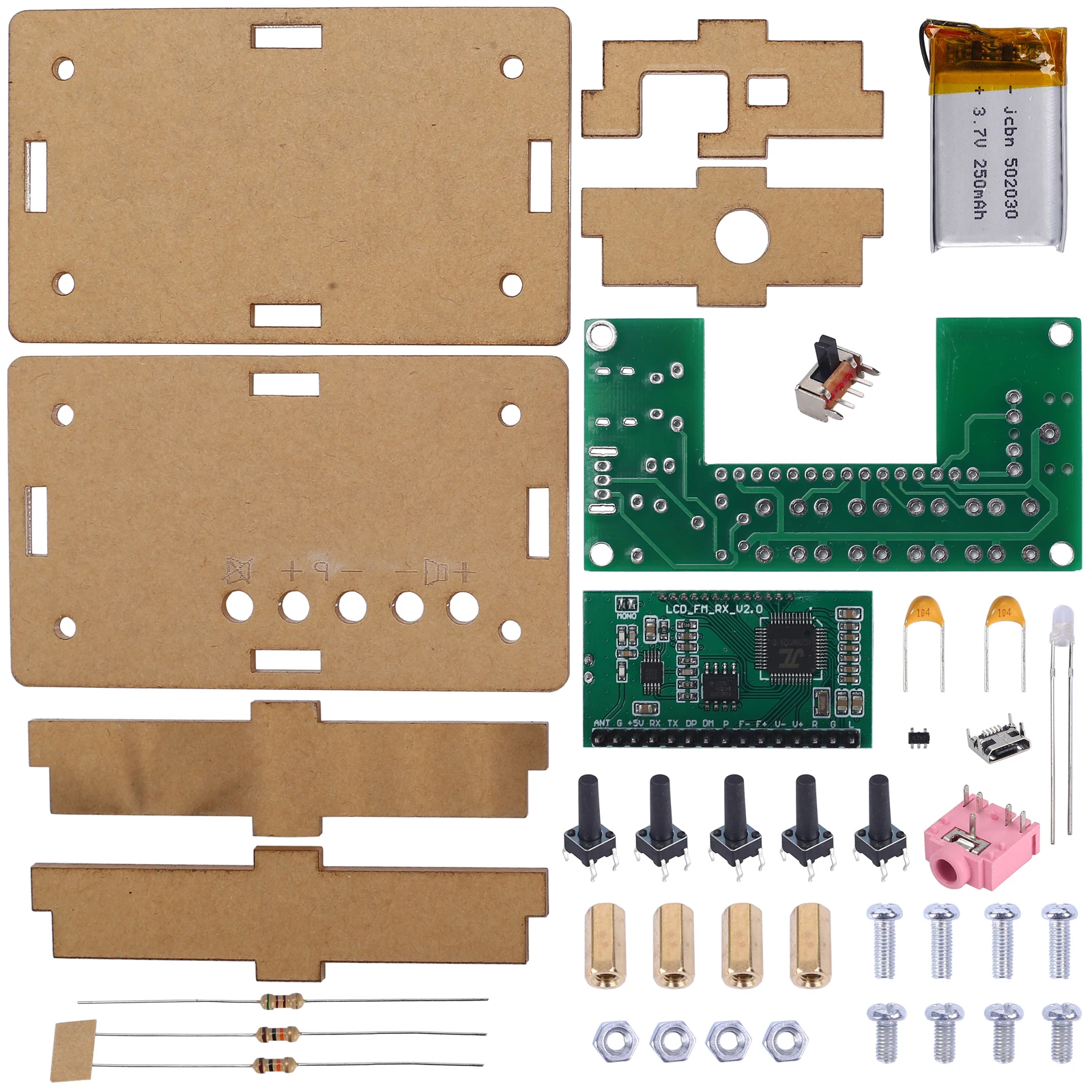
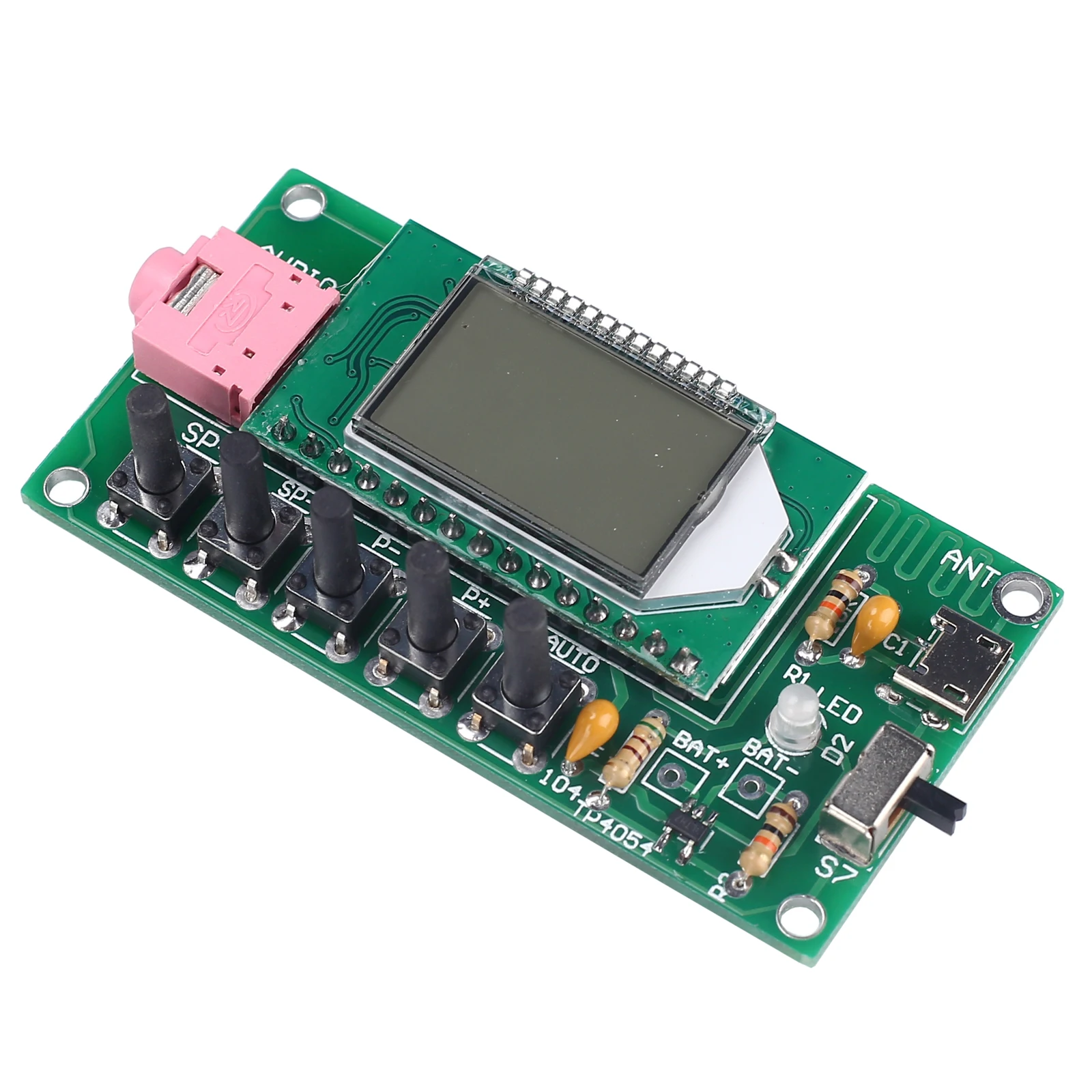
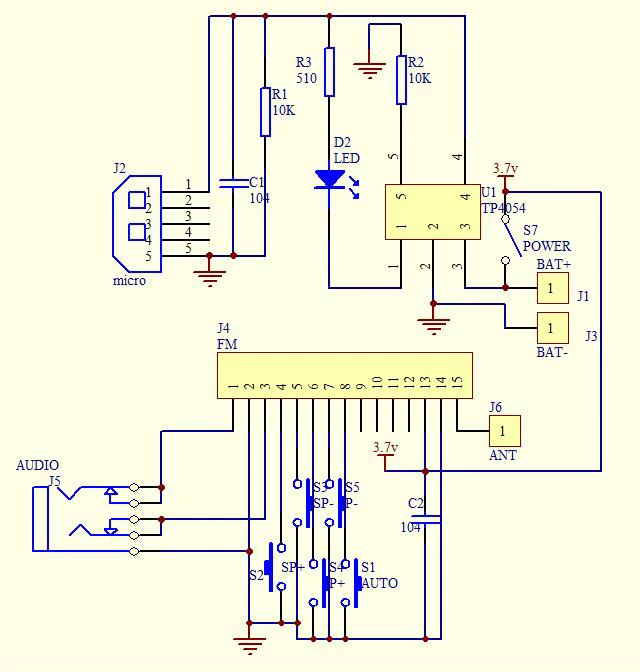
Schematic Diagram:
Application:
1>.Training welding skills
2>.Student school
3>.DIY production
4>.Project Design
5>.Electronic competition
6>.Gift giving
7>.Crafts collection
8>.Home decoration
9>.Souvenir collection
Installation Steps(Please be patient install!!!):
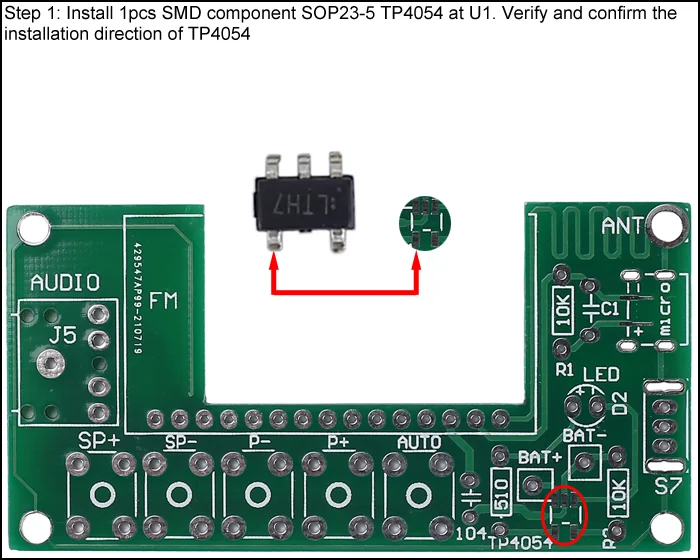
1>.Step 1: Install 1pcs SMD component SOP23-5TP4054at U1. Verify and confirm the installation direction of TP4054.
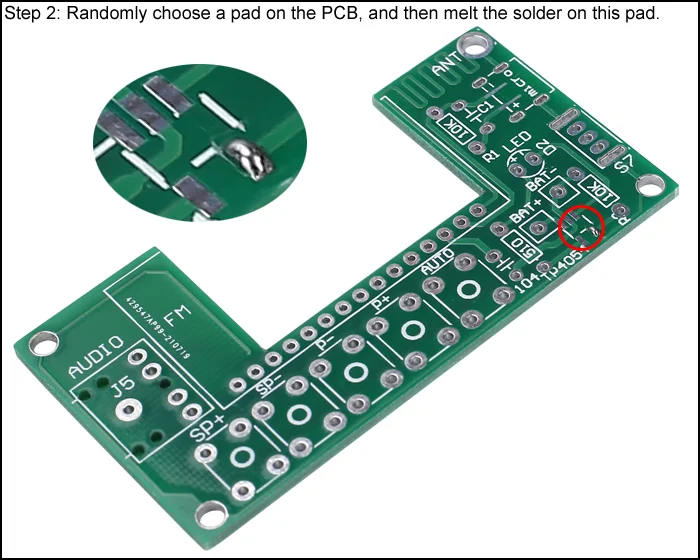
2>.Step 2:Randomly choose a pad on the PCB, and then melt the solder on this pad.
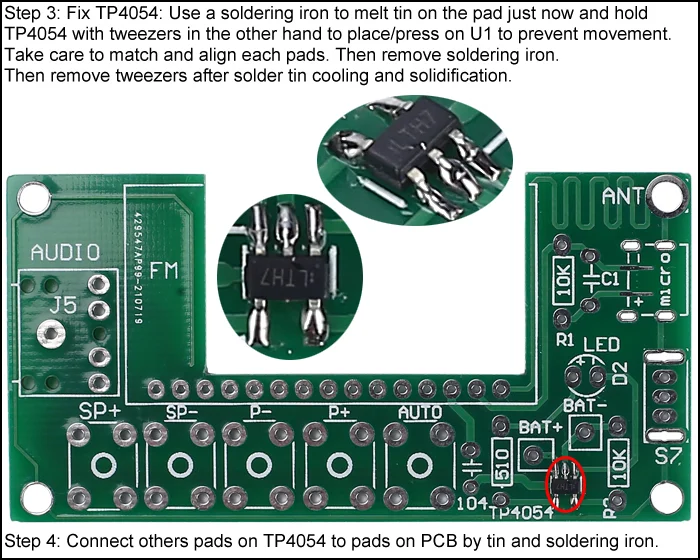
3>.Step 3:Fix TP4054: Use a soldering iron to melt tin on the pad just now and hold TP4054with tweezers in the other hand to place/press on U1 to prevent movement. Take care to match and align each pads. Then remove soldering iron. Then remove tweezers after solder tin cooling and solidification.
4>.Step 4:Connect others pads on TP4054to pads on PCB by tin and soldering iron.
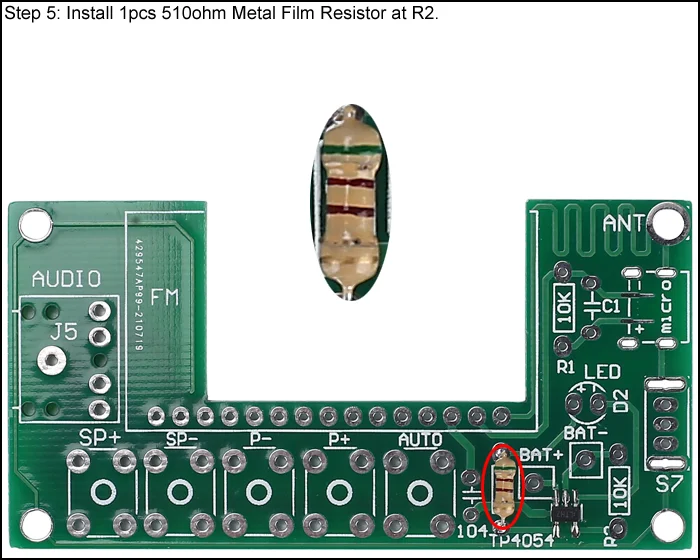
5>.Step 5: Install 1pcs510ohm Metal Film Resistor at R2.
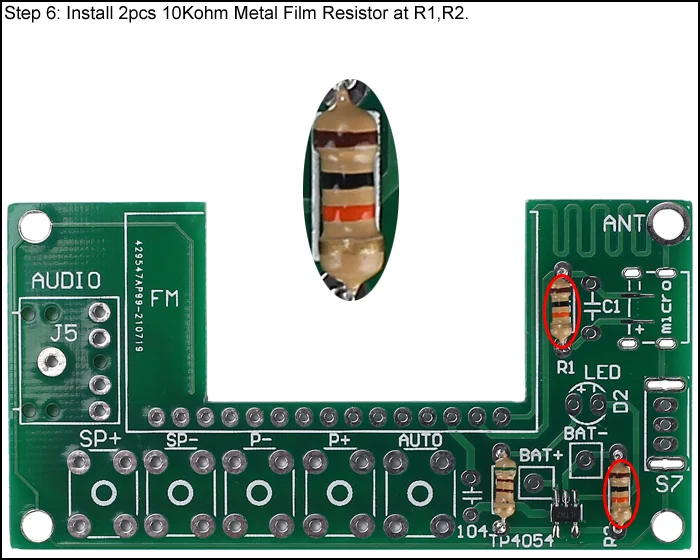
6>.Step 6: Install 2pcs 10Kohm Metal Film Resistor at R1,R2.
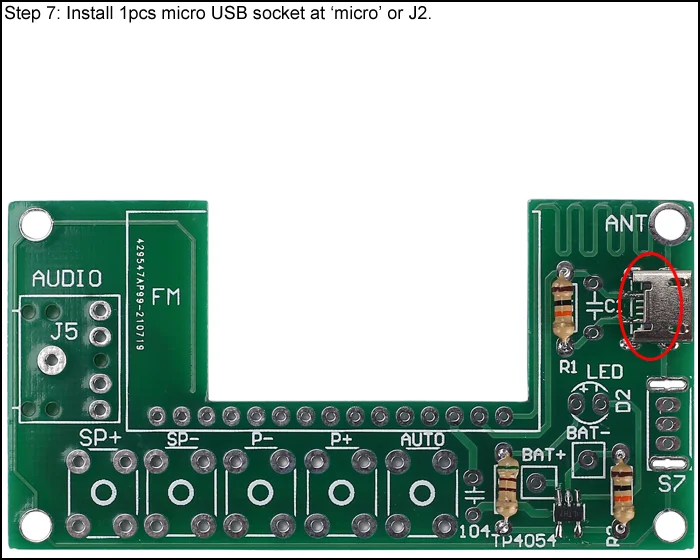
7>.Step 7:Install 1pcs micro USB socket at ‘micro’or J2.
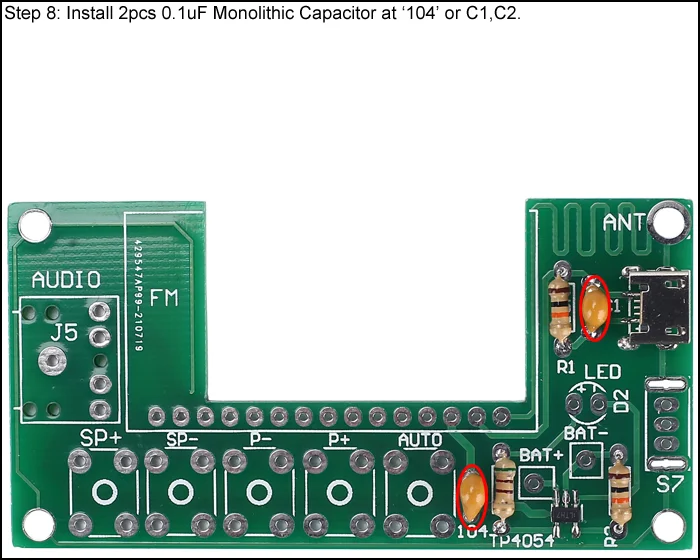
8>.Step 8: Install 2pcs 0.1uF Monolithic Capacitor at‘104’or C1,C2.
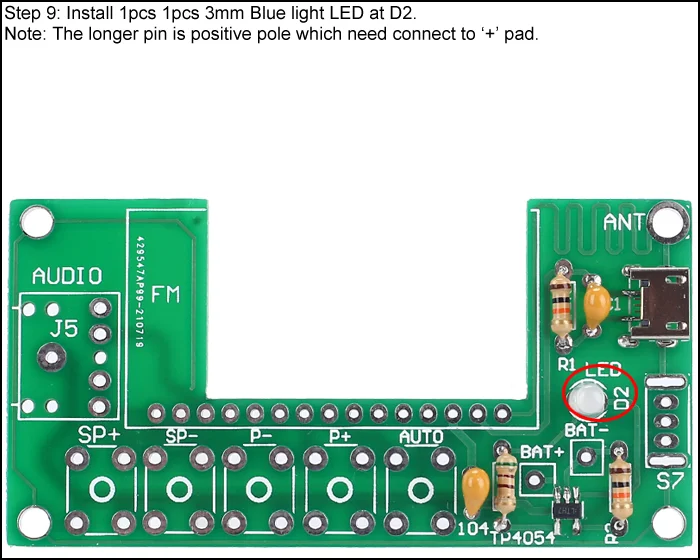
9>.Step9: Install 1pcs 1pcs 3mm Blue light LED at D2.Note: The longer pin is positive pole which need connect to ‘+’pad.
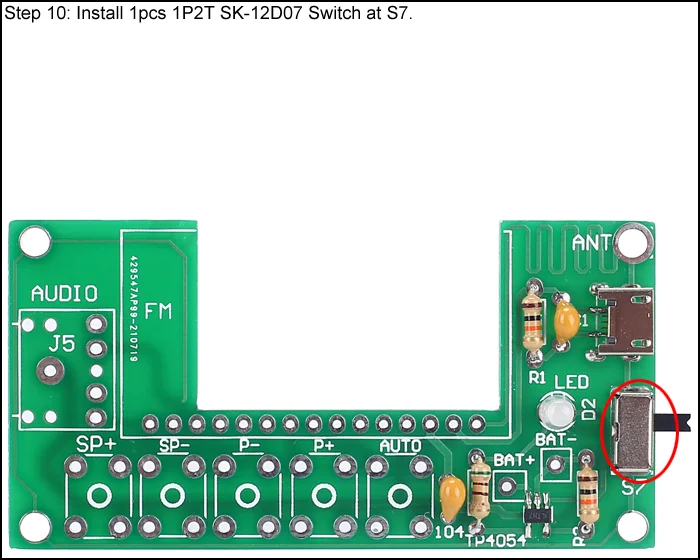
10>.Step 10: Install 1pcs 1P2TSK-12D07 Switch atS7.
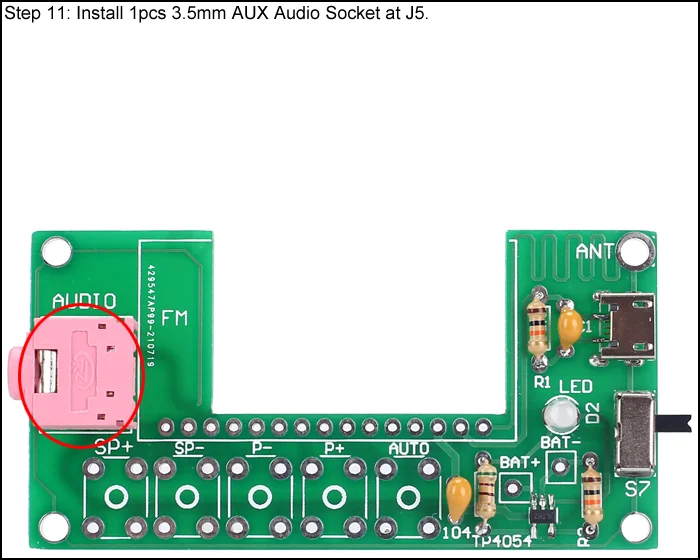
11>.Step 11: Install 1pcs 3.5mm AUX Audio Socket at J5.
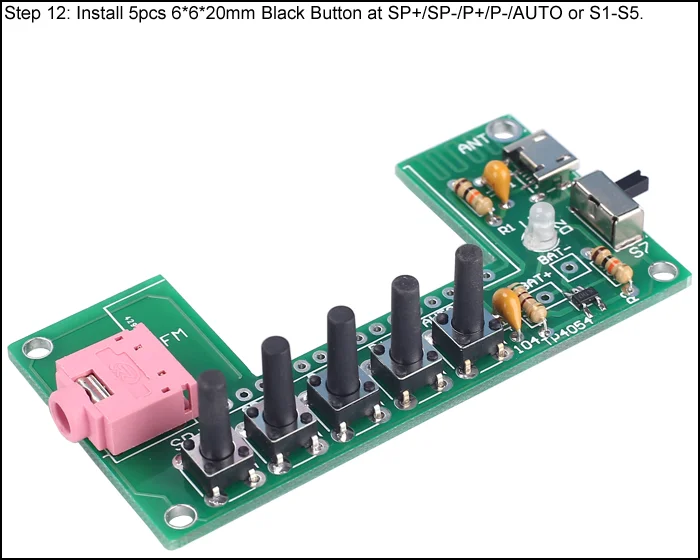
12>.Step 12: Install 5pcs 6*6*20mmBlack Button atSP+/SP-/P+/P-/AUTO or S1-S5.
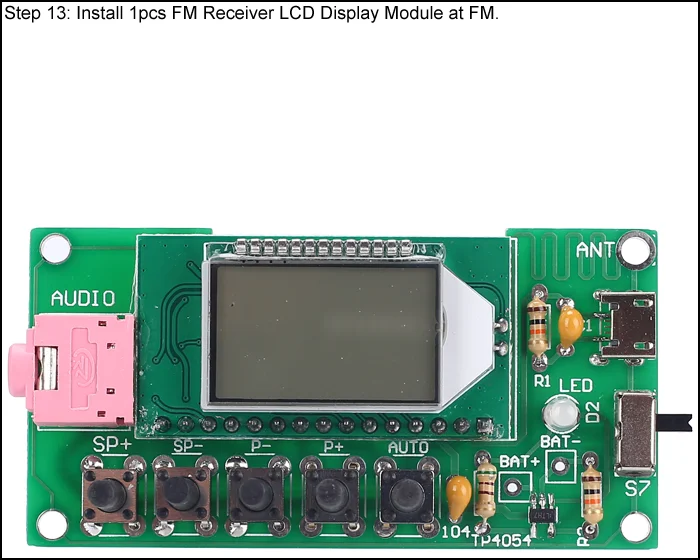
13>.Step 13: Install 1pcs FM Receiver LCD Display Moduleat FM.
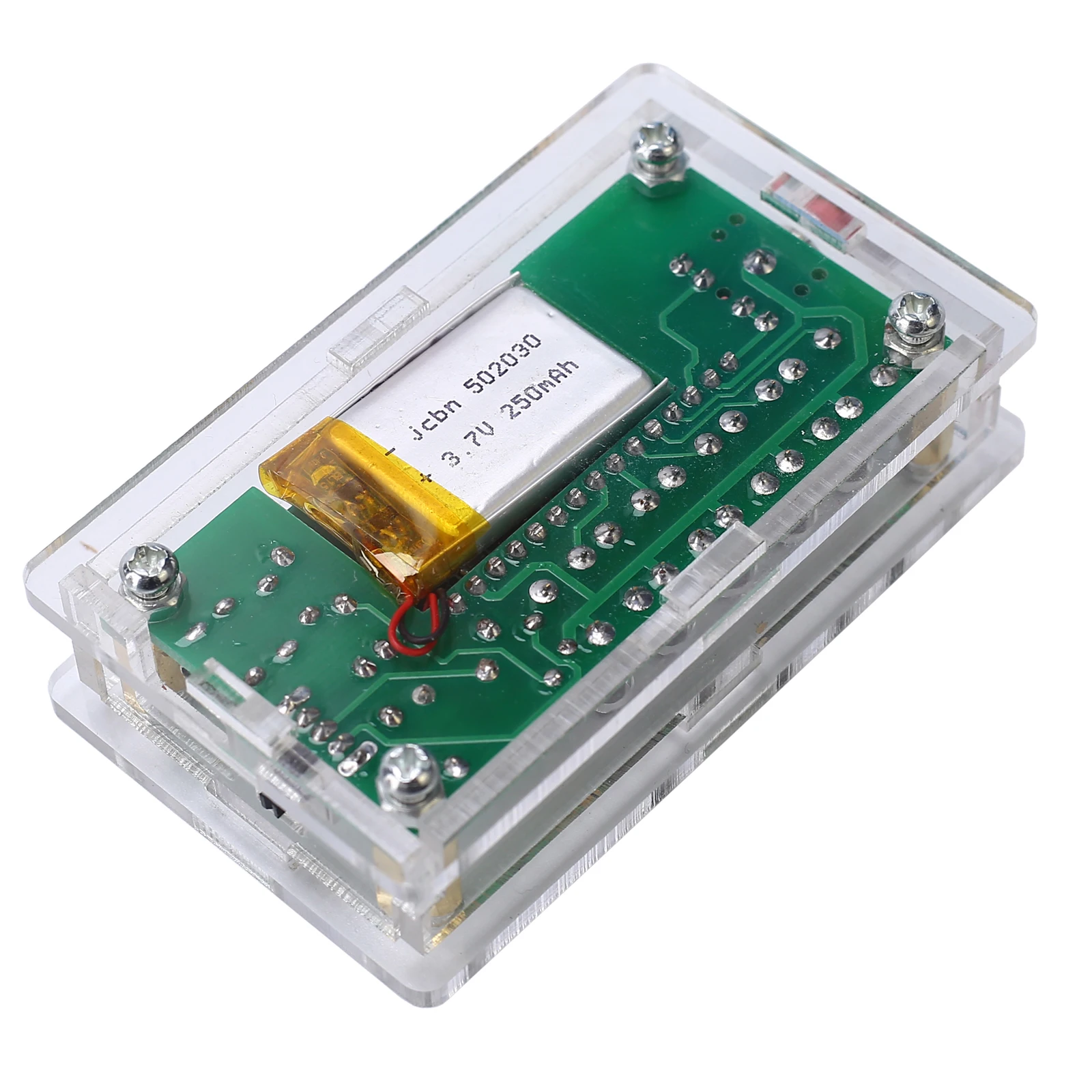
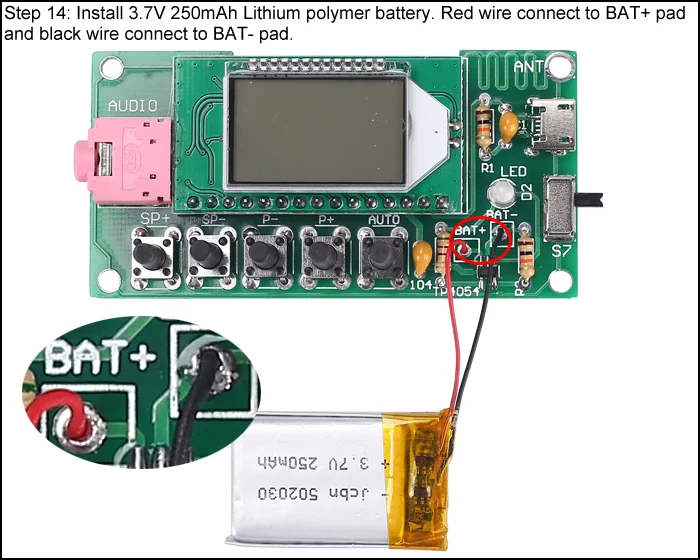
14>.Step 14: Install 3.7V 250mAh Lithium polymer battery. Red wire connect to BAT+ pad and black wire connect to BAT- pad.
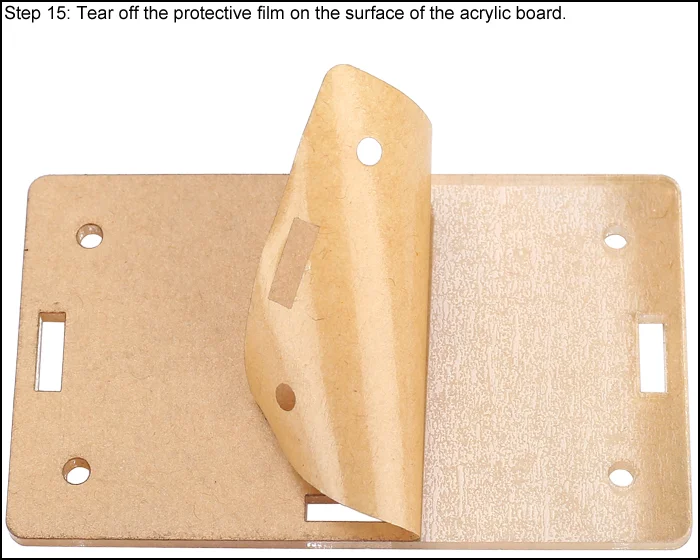
15>.Step 15: Tear off the protective film on the surface of the acrylic board.
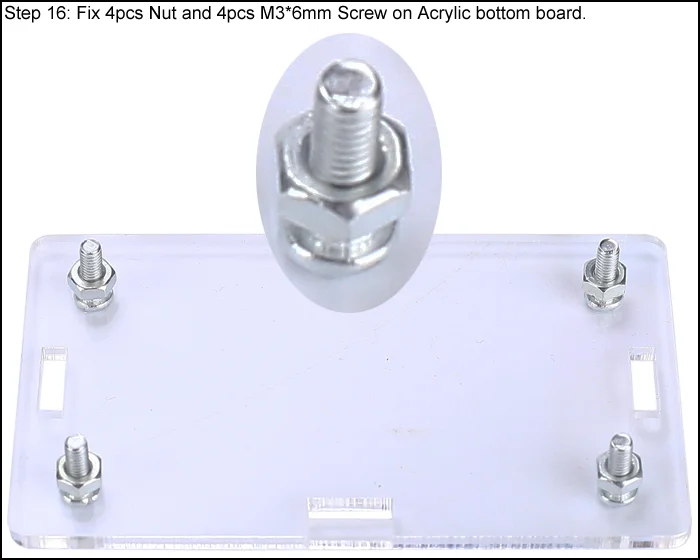
16>.Step 16: Fix 4pcs Nut and 4pcs M3*6mm Screw on Acrylic bottom board.
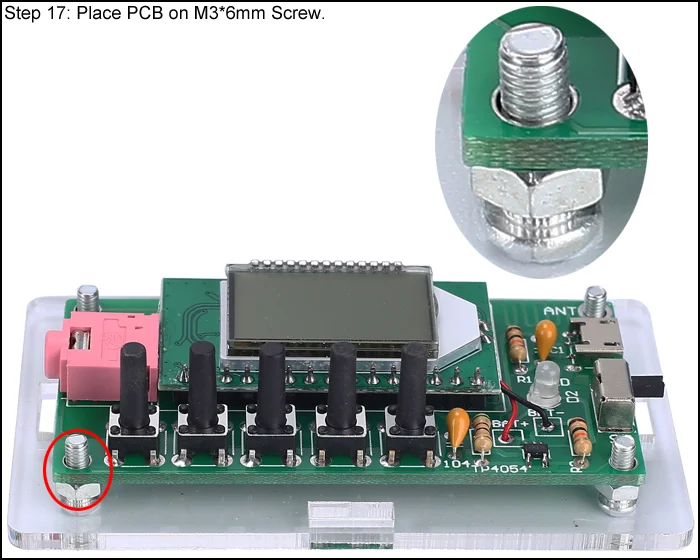
17>.Step 17: Place PCB on M3*6mm Screw.
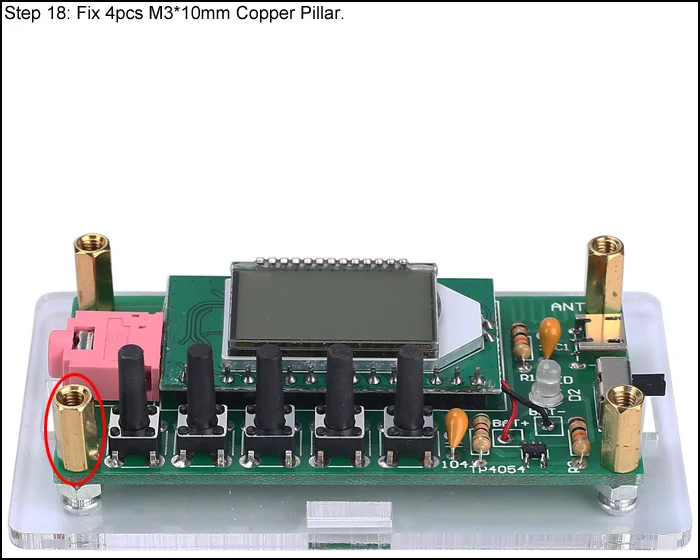
18>.Step 18: Fix 4pcs M3*10mm Copper Pillar.
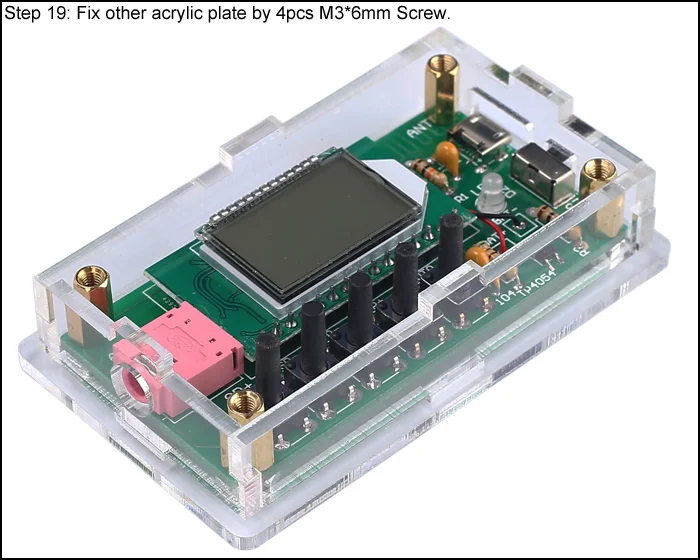
19>.Step 19: Fix other acrylic plate by 4pcsM3*6mmScrew.
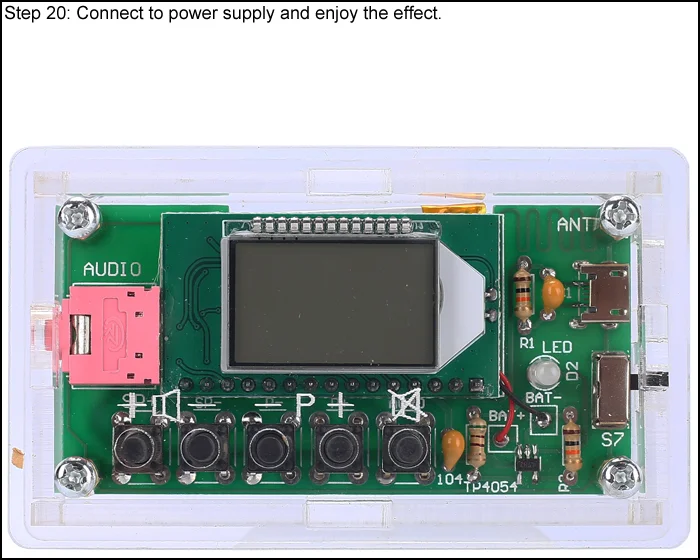
20>.Step20: Connect to power supply and enjoy the effect.
Install shown steps:
Vendor Information
- Store Name: Amazone
- Vendor: Amazone
-
Address:
WA
United States (US) - No ratings found yet!







Reviews
There are no reviews yet.